able Basics
- To review table basics,
Return
to Tutorial on Dreamweaver Basics
.
Color Background in a Cell
- With a table selected,
the Properties window can be expanded to the view you see below. Cell properties
are changed in the bottom of the window. To the right of Header is
Bg
followed by a gray box with a down arrow. Click anywhere in that box for
a color palette. Dreamweaver displays the hex code for that color. One step
further to the right is a
Brdr
box. Dreamweaver will place a colored
border around the inside of the table cell.

Those who view your page with Netscape will not see the border, Internet
Explorer viewers will see it. As an example look at the table below the
title of this page. IE viewers will see a purple border.
Invisible Tables
- Giving a table a border of
0 (zero), will make the lines around cells invisible. However, the table
retains its basic structure, allowing you to organize text on a web page.
The table below is two rows deep and three columns wide.
|
Organize blocks of text in a table with an invisible
border.
|
You can not use the tab to move over in web page
development software.
|
However, invisible borders can give the illusion
of having used tabs
|
|
Hi
|
Hi
|
Hi
|
Changing Span
- Table cells are not constrained
to be the same height or width. A single cell can spread down to cover several
rows, or spread across to cover several columns. This spreading is known
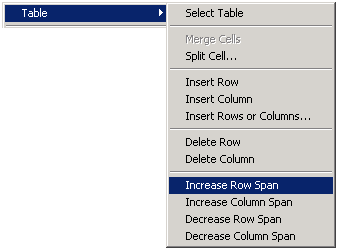
as Spanning. Cells may also be split. To change span or split right click
in a cell. (Yes, Mac users, you too can right click. Control + click) The
following pop up box is displayed:
|
This cell spans down to cover three rows
|
This cell spans right to cover two rows
|
Hi
|
Hi
Hi
Hi
Hi
Hi
Hi
Hi
Hi
|
|
The cell to the right was split into two cells
|
Hi
|
|
Hi
|
Image as Background
- A single background image
may be used for the entire table, or each cell may contain separate
images.
However, you must be very careful about using images behind text. Keep
in mind the reason you wrote the web page. Don't do things that will
make your message difficult to read. The Properties
window is used to place a background image in the table or cell. Notice
in the Properties window below that the upper background box contains
the
image information. Browse for an image by clicking on the folder icon.


Tidak ada komentar:
Posting Komentar